MExplorer icon

MExplorer

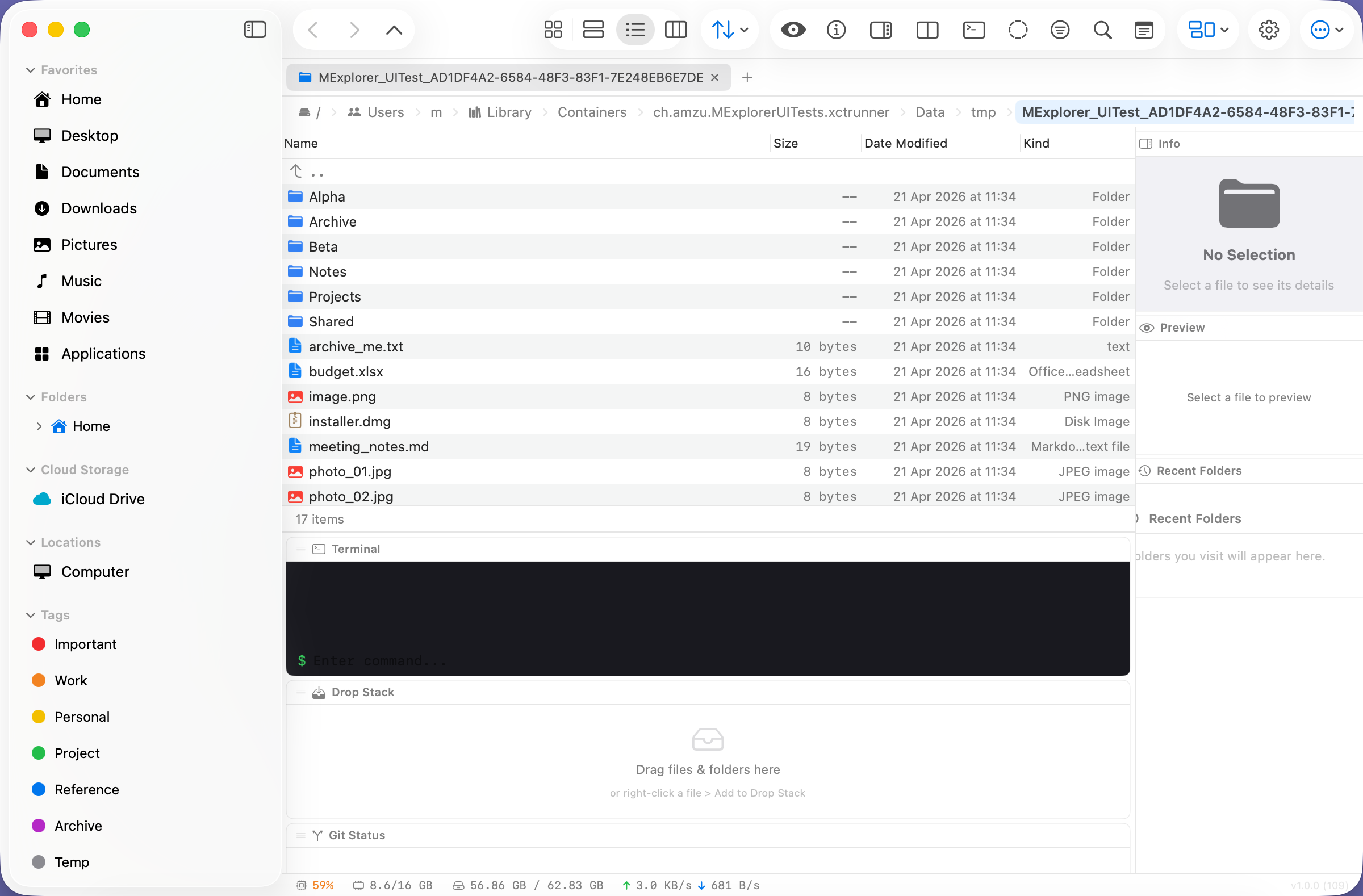
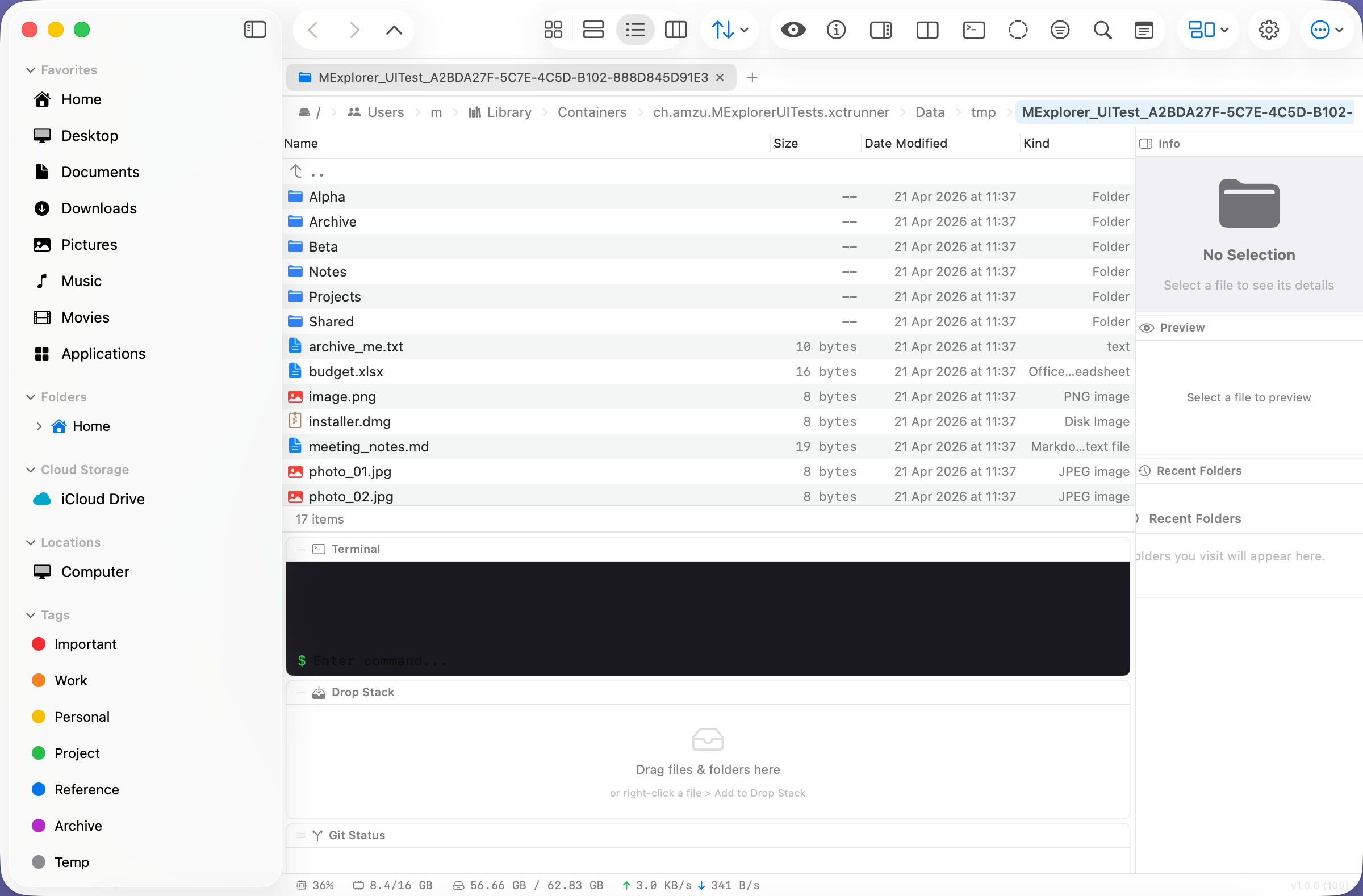
Eleven one-click profile presets that reshape it into Finder, Windows Explorer, Dolphin, Nautilus, Total Commander or Directory Opus. FileZilla-style server manager with Keychain passwords. Bulk rename, duplicate finder, find-in-files, Miller columns, Commander F-keys — built natively for macOS.

Install with Homebrew:

brew tap amzu-ch/tap https://dev.azure.com/amzu-ch/Homebrew/_git/homebrew-tap
brew install --cask mexplorer
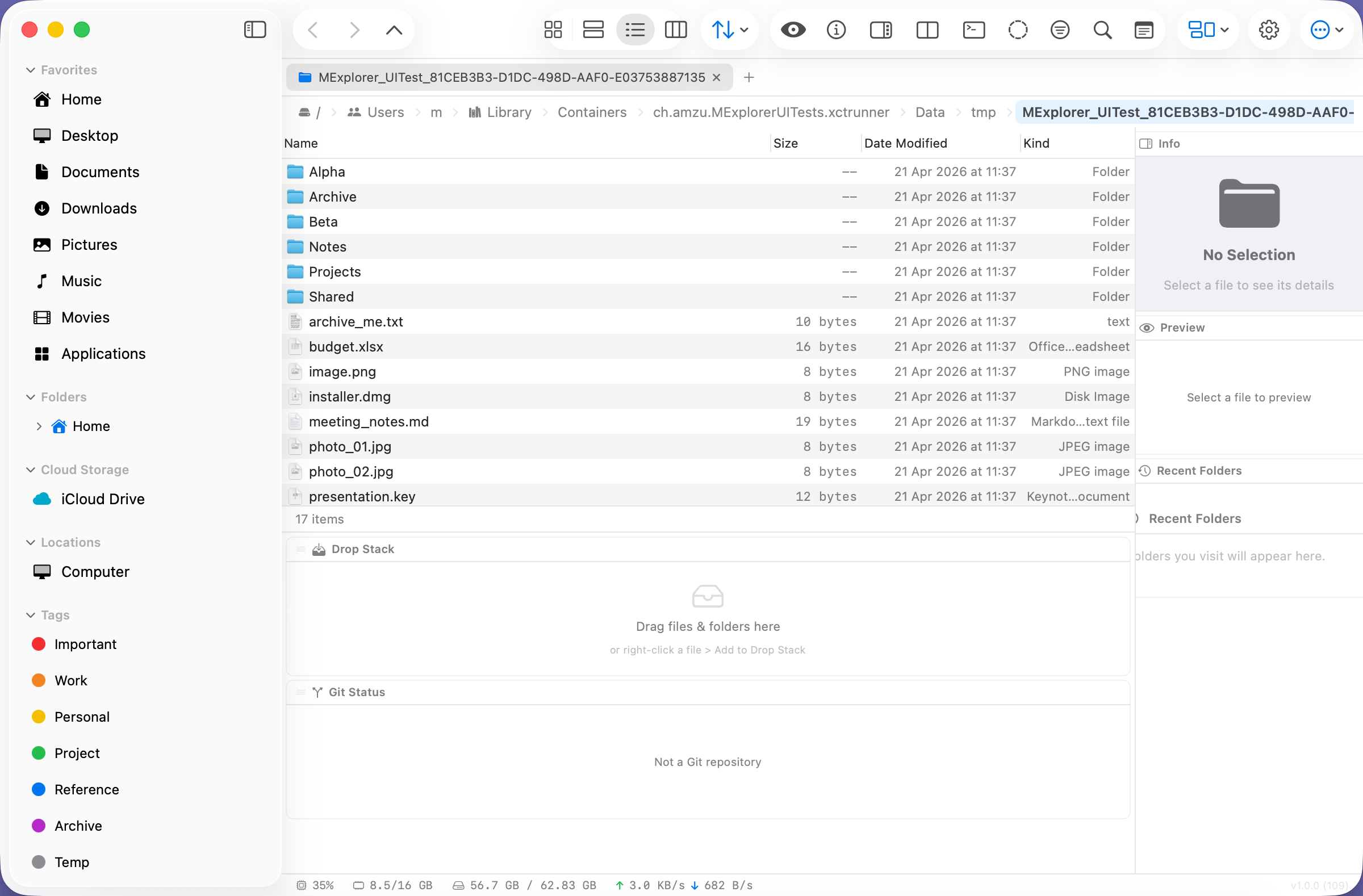
MExplorer main window with sidebar, file list and modules
Download for macOS Explore features

Native macOS app · macOS 13 Ventura or newer · Free · Use at your own risk

Why MExplorer

Everything Finder should be, and a lot more.

🗂️

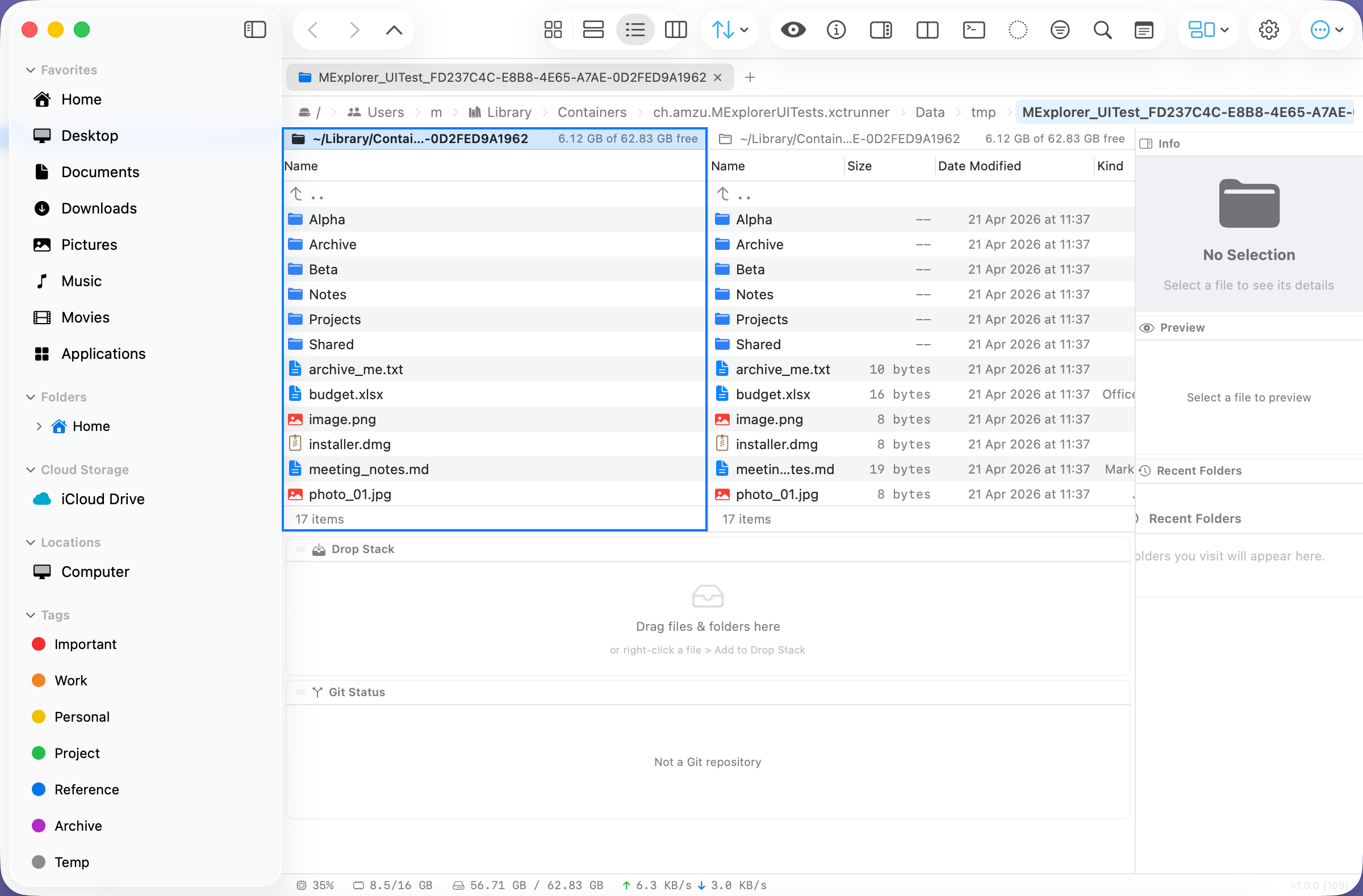
Tabs & Dual Pane

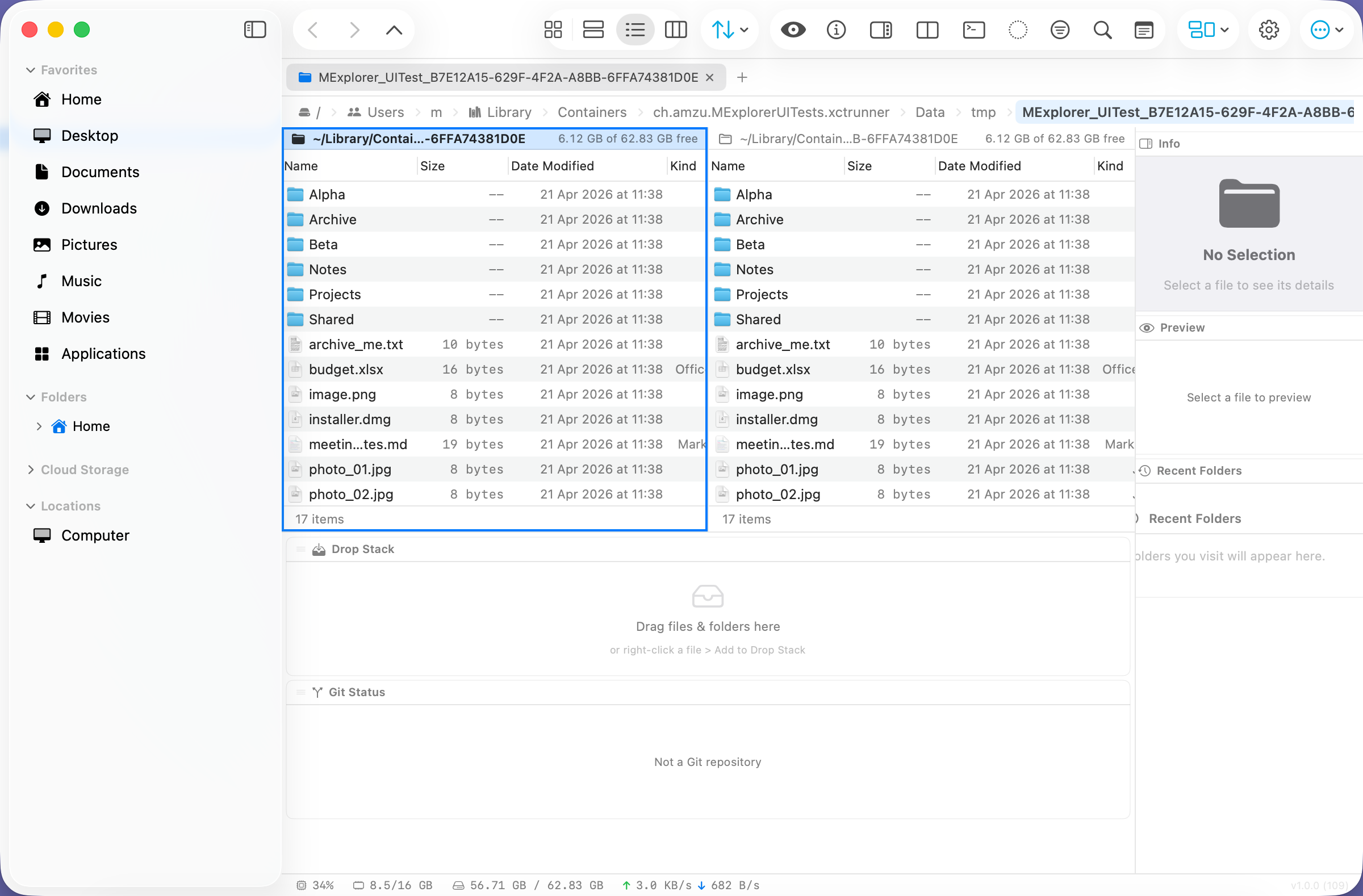
Open as many tabs as you need. Split any tab into two panes to copy or move between folders without losing your place.
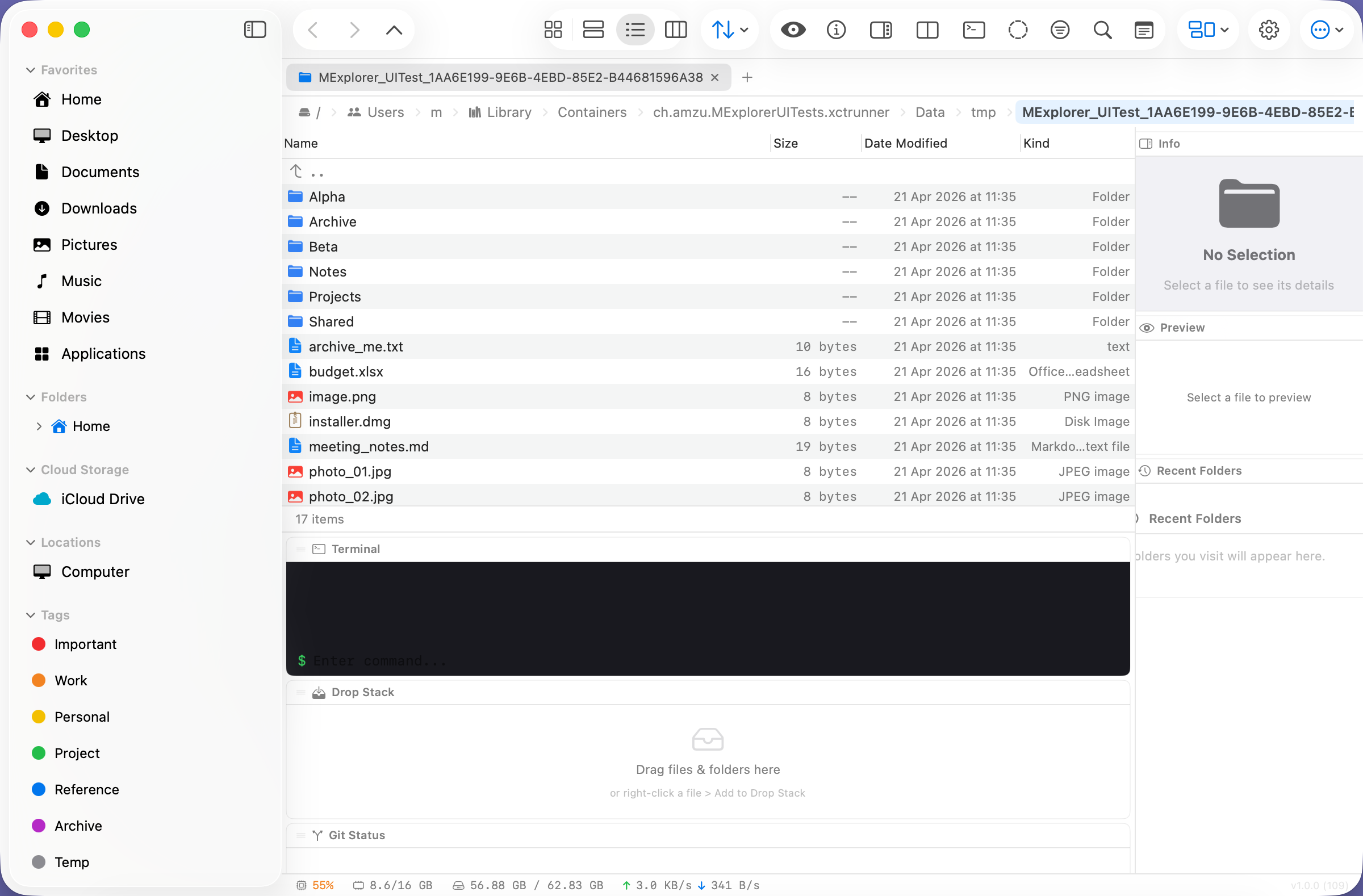
MExplorer split-view with two side-by-side panes
🔎

Find in Files

Search inside files with regex, case-sensitive and whole-word options. Binary files are skipped automatically.

MExplorer Find in Files panel

Duplicate Finder

Reclaim disk space. Compare by SHA-256 content or by name + size metadata, grouped by how many bytes you’d recover.

🔄

Folder Compare & Sync

Recursive diff of two folders with added / removed / modified breakdown — sees subfolders too.

✏️

Bulk Rename Engine

Tokens like {name}, {N:3}, {date:yyyy}, regex find/replace, case modifiers. Live preview with collision detection before you commit.

📦

Archive Browser

Browse ZIP archives as folders and extract individual entries. 7z and RAR supported when p7zip is installed.

👁️

F3 Built-in Viewer

Auto-detects text, hex dump, and image files. Zoom, fit-to-window, slideshow and arrow-key navigation for images.

🖼️

Thumbnail Grid

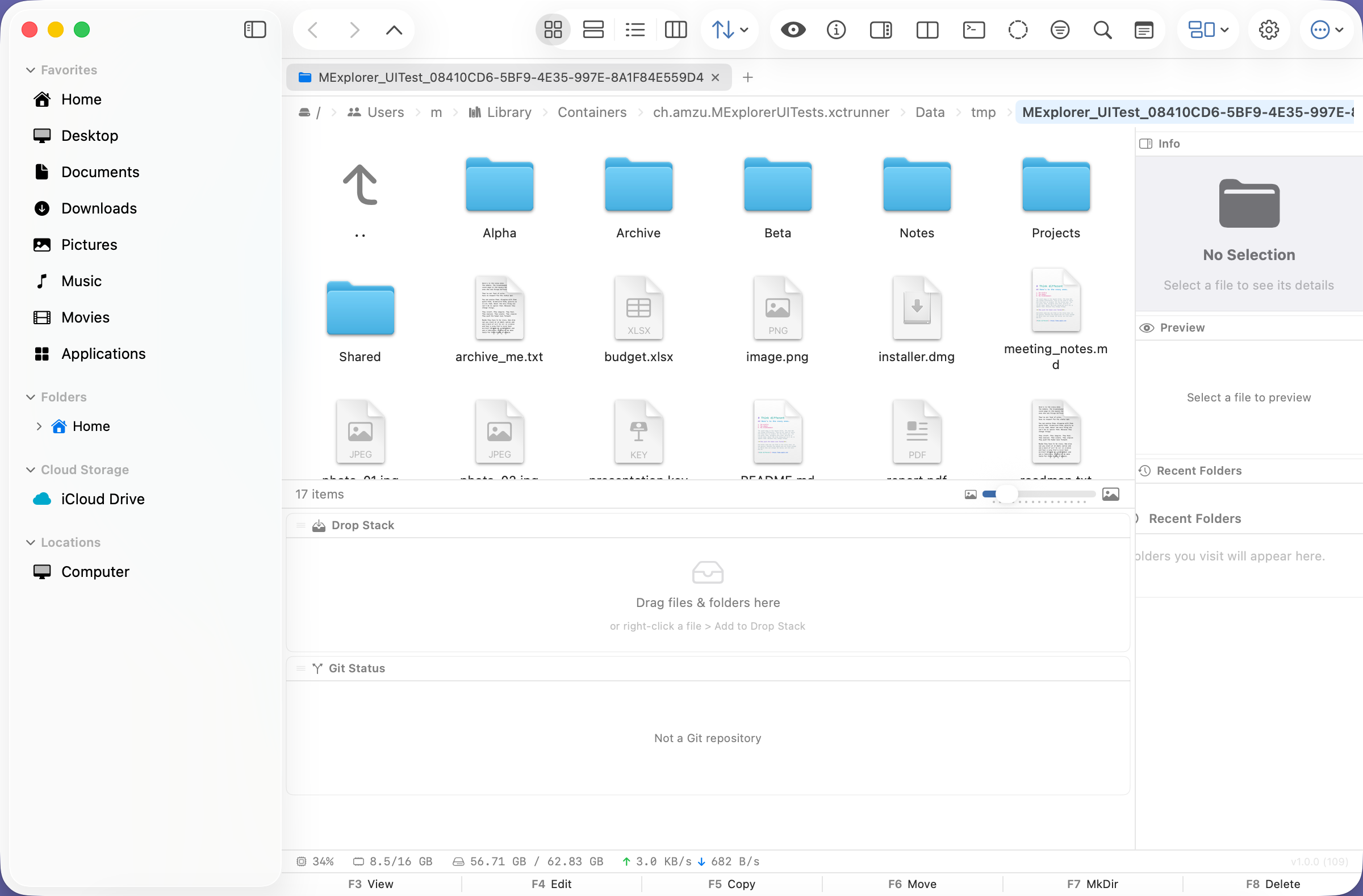
Image-focused browsing with a size slider (64–512 px). QuickLook thumbnails, bounded memory, bucketed cache for instant rescans.

📏

Folder Size Analysis

Recursive byte count and file-count summary for any folder. Cached per run so repeat lookups are instant.

Type-ahead Filter

Start typing to narrow the list. Prefix with * for substring mode, use ? for single-char wildcards.

🏷️

Drag-to-Tag & Smart Folders

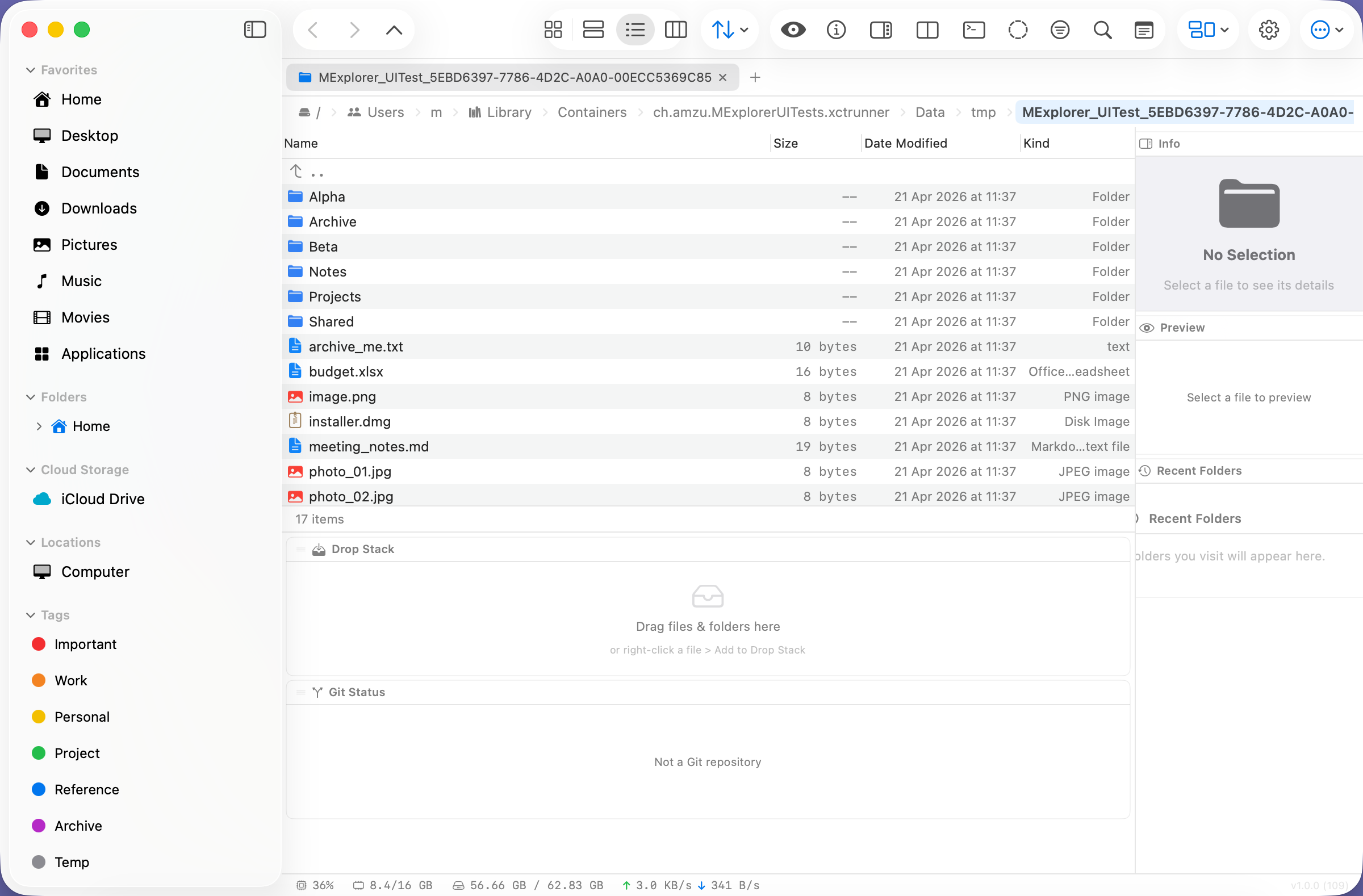
Drag any file onto a sidebar tag to apply it. Click a tag to see every file assigned to it across disk — a real smart folder, not just a filter. Right-click → Tags to toggle individually or New Tag… inline. Tags and star ratings are now separately toggleable features.

🕘

Recent Folders Panel

A right-panel module keeping the last N folders you visited, MRU-ordered. One click jumps the active pane there. Settings → Recent Folders controls the row count (1–50) and has a Clear History button.

📄

Markdown & PDF Preview

F3 opens the built-in viewer; .md files render with proper headings, lists and code blocks, and PDFs open through PDFKit with page navigation, zoom and text selection. No QuickLook round-trip.

🔑

Hash Panel

The Info panel includes a Hashes section with MD5, SHA-1, SHA-256 and SHA-512. Compute per algorithm on demand, copy digests to clipboard, or Save Sidecar to drop a file.sha256 in shasum format next to the file.
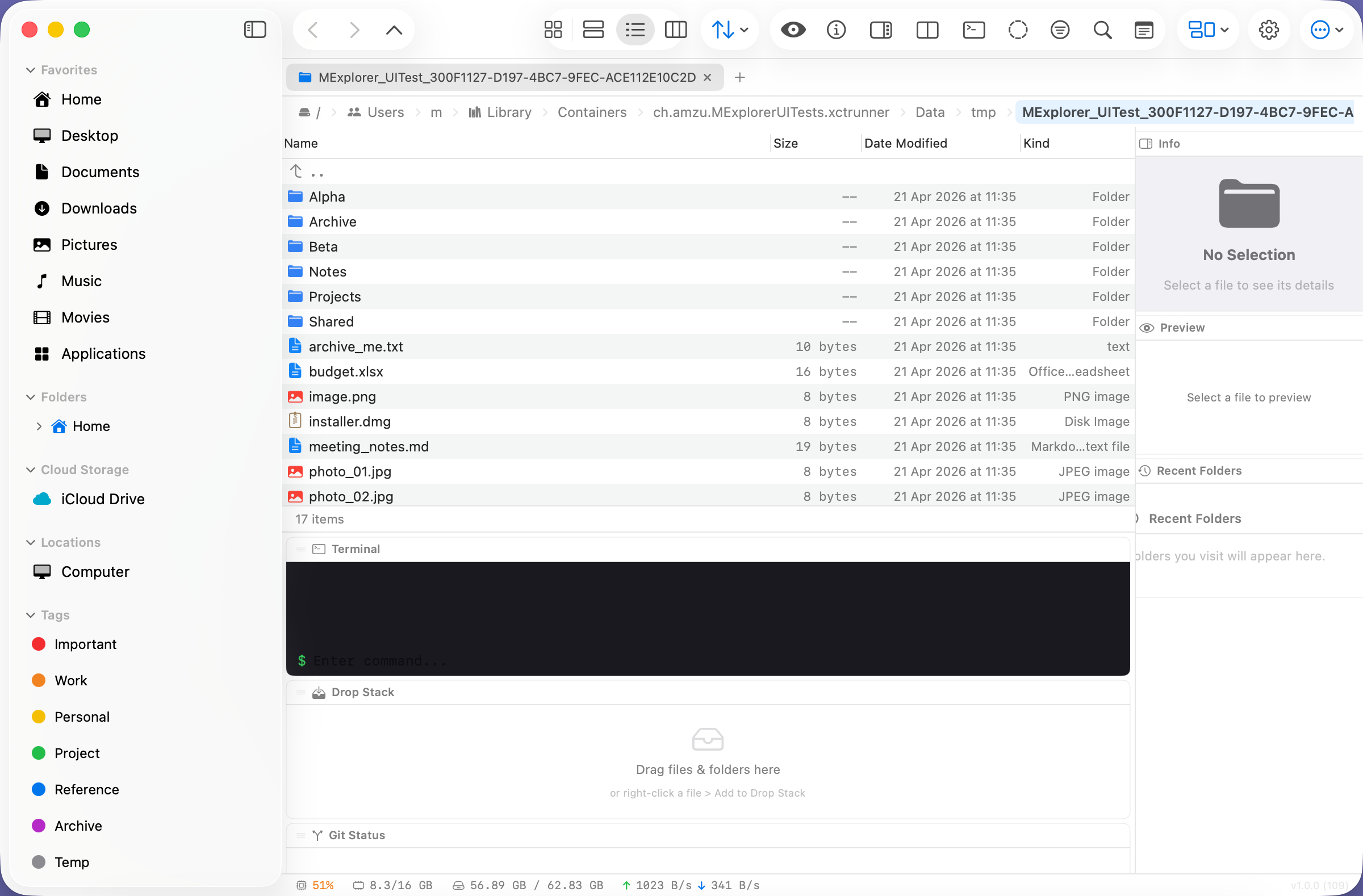
MExplorer Info panel with file metadata
📚

Collapsible Sidebar

Every section — Favorites, Folders, Cloud, Locations, Tags, Ratings, Modules — is individually collapsible. Click the title or chevron; the state persists across launches.
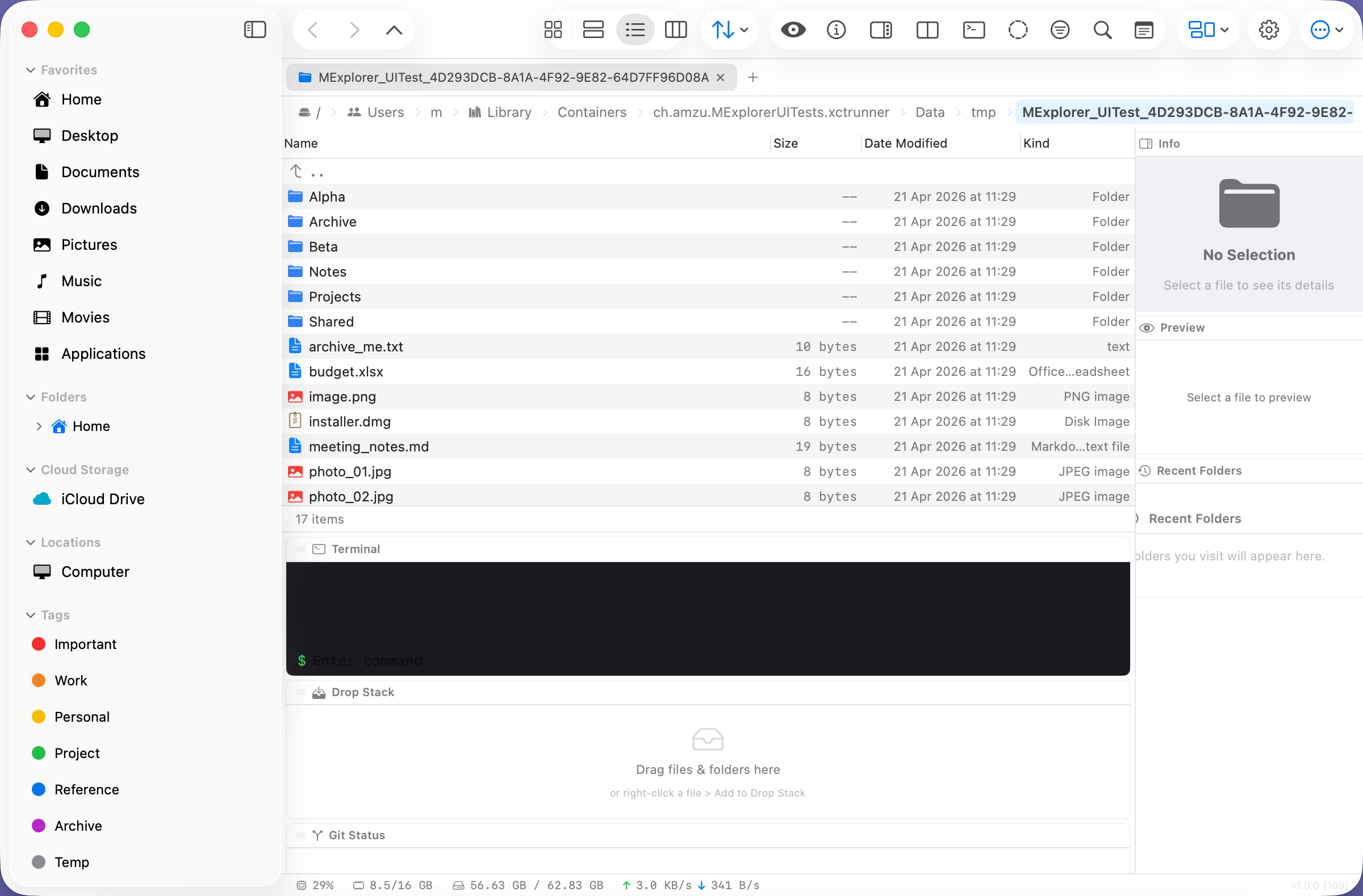
MExplorer sidebar with collapsible sections
🖼️

Colourful File Icons

Category-tinted SF-Symbol icons for folders, images, videos, audio, documents, archives, code and executables. Monochrome fallback is one toggle away. Matches Breeze / Mint-Y looks when paired with Dolphin or Nemo presets.
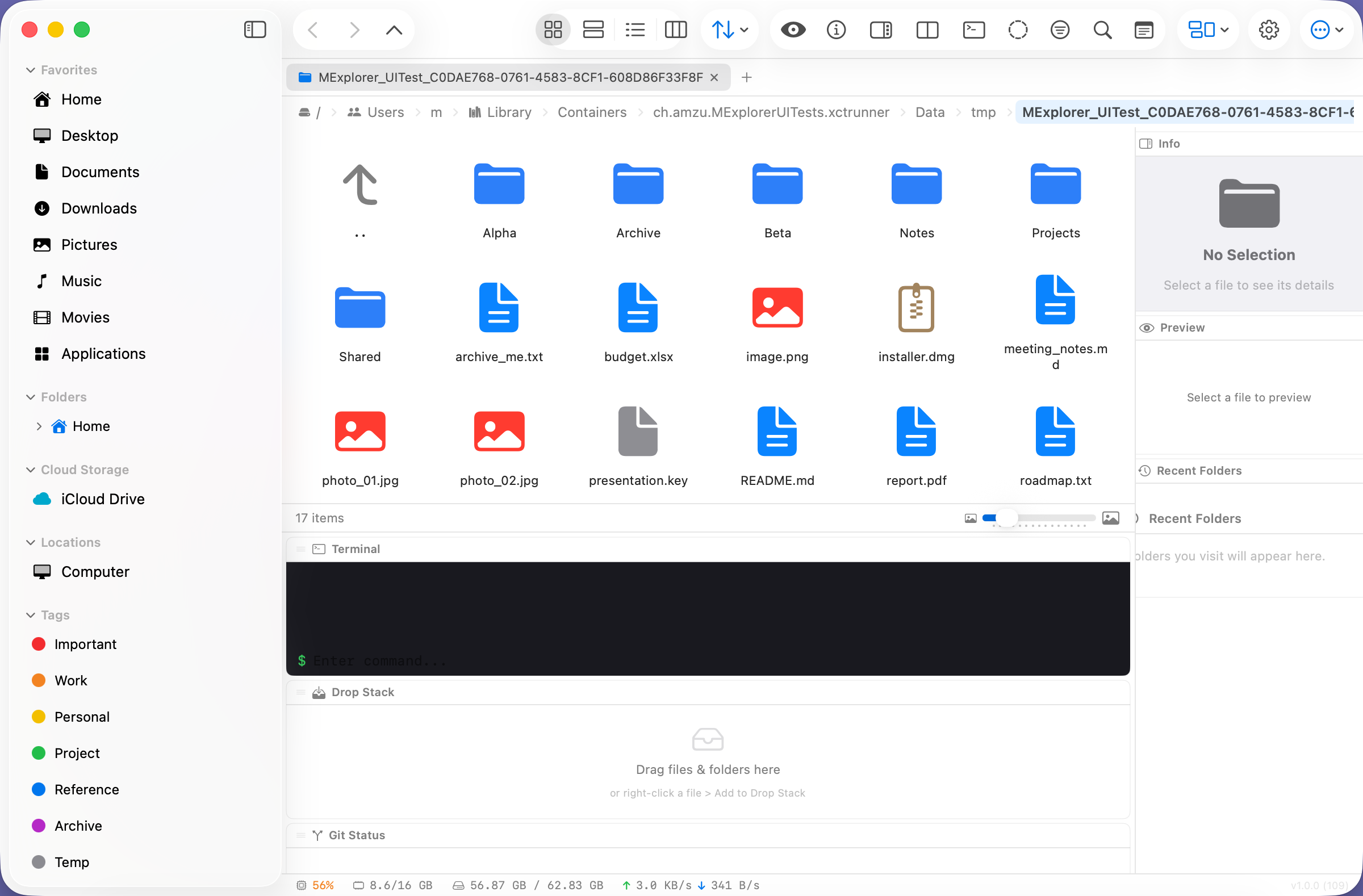
MExplorer icons view with category-tinted file icons
⚙️

File Type Bindings

Settings → File Type Bindings lets you edit which extensions map to which category (Images / Videos / Audio / Documents / Archives / Code / Executables) — add webp to images, move dmg out of archives, or reset a row to defaults.
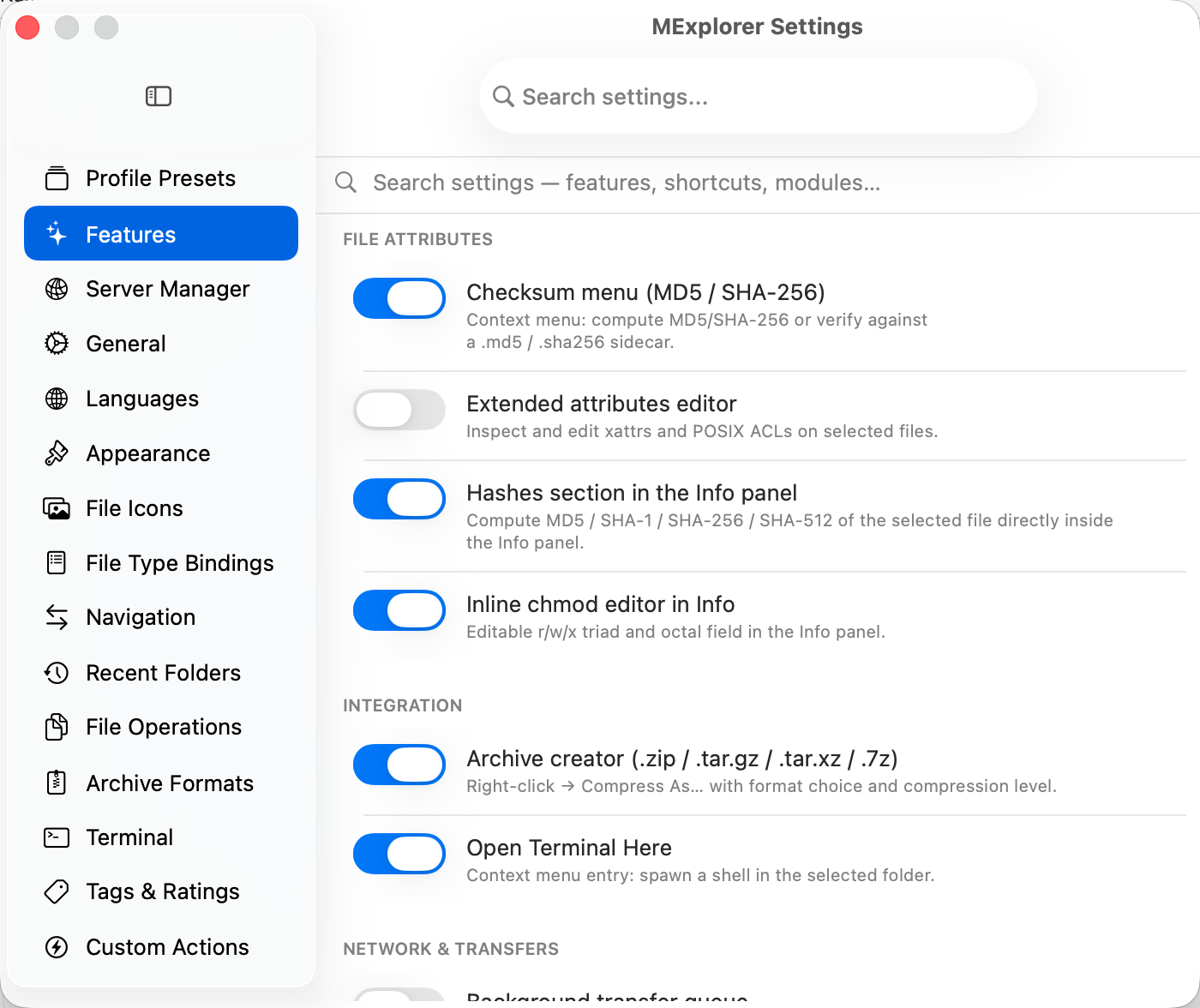
MExplorer Features settings pane
📐

Split-View Polish

Active pane gets an accent-coloured border so you always know which side your keystrokes hit. Each pane shows a bold path + free-space header. Right-panel toggle (⌘⌃D) symmetric with the sidebar toggle (⌘⌃S).

💾

Backup & Reset

Settings → Backup & Reset exports every preference to JSON, imports them back, or resets to factory defaults with a confirmation. An auto-snapshot is written to ~/Library/Application Support/MExplorer/settings.json on quit.
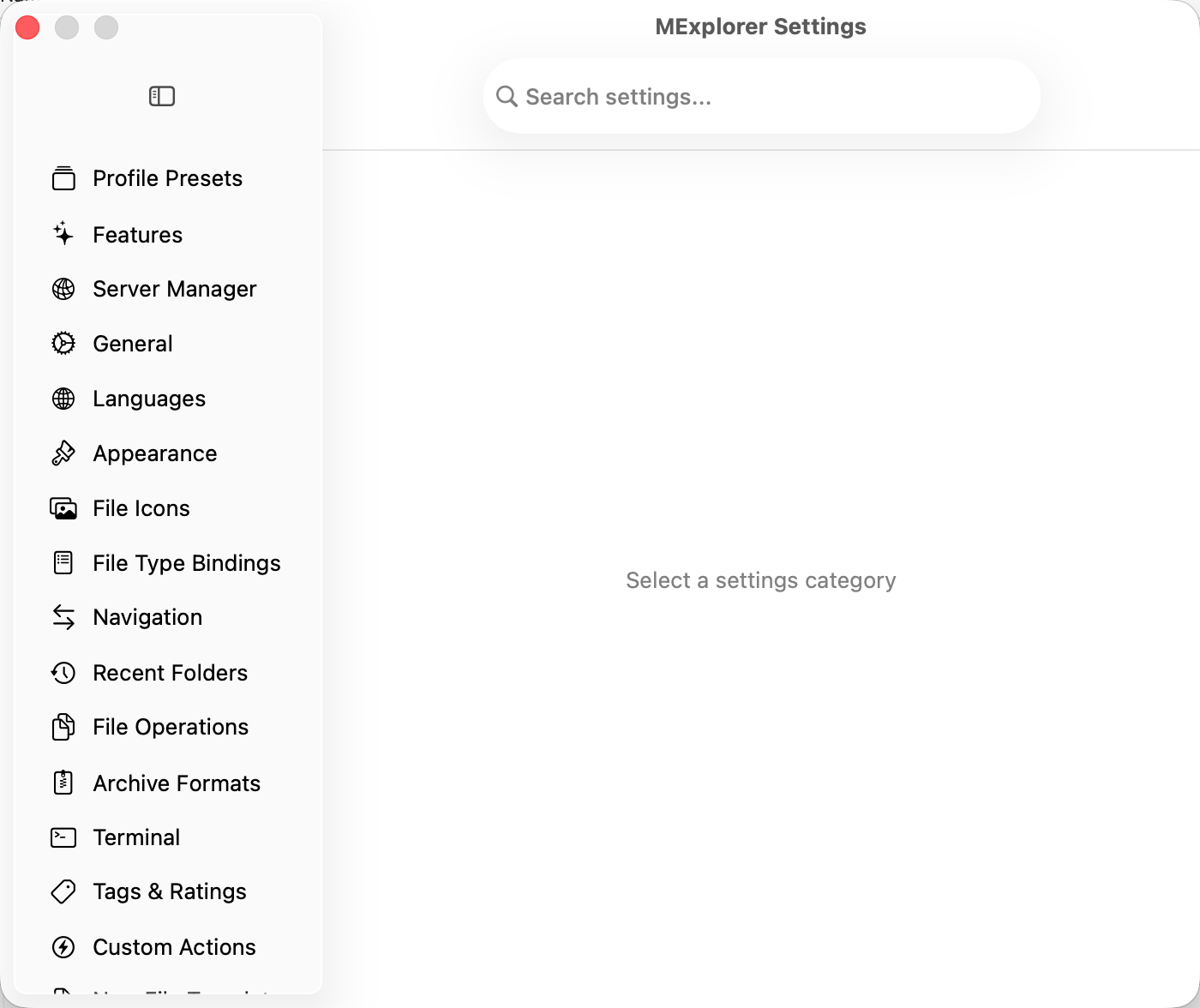
MExplorer Settings window
🗓️

Sort-by-Date Timeline

Sort by Date Modified or Date Created and MExplorer drops the folders-first grouping, producing a single interleaved timeline — the literal most-recent item lands at the top, file or folder. Sort by Name / Size / Kind keeps folders-first.

🔎

Focus-First Search

⌘F focuses the search field with an accent-coloured border so you can start typing immediately. Globs supported: *.html, report?.pdf. Deleting the query restores the full list without pressing the X.

☁️

Cloud Aware

iCloud Drive, Google Drive, OneDrive and Dropbox are detected automatically and surfaced in the sidebar.

🪪

Properties & chmod

Right-click → Properties… opens a full sheet with POSIX r/w/x triad, octal field, and an explicit Executable (owner) toggle so you don’t need to drop into Terminal.

🏛️

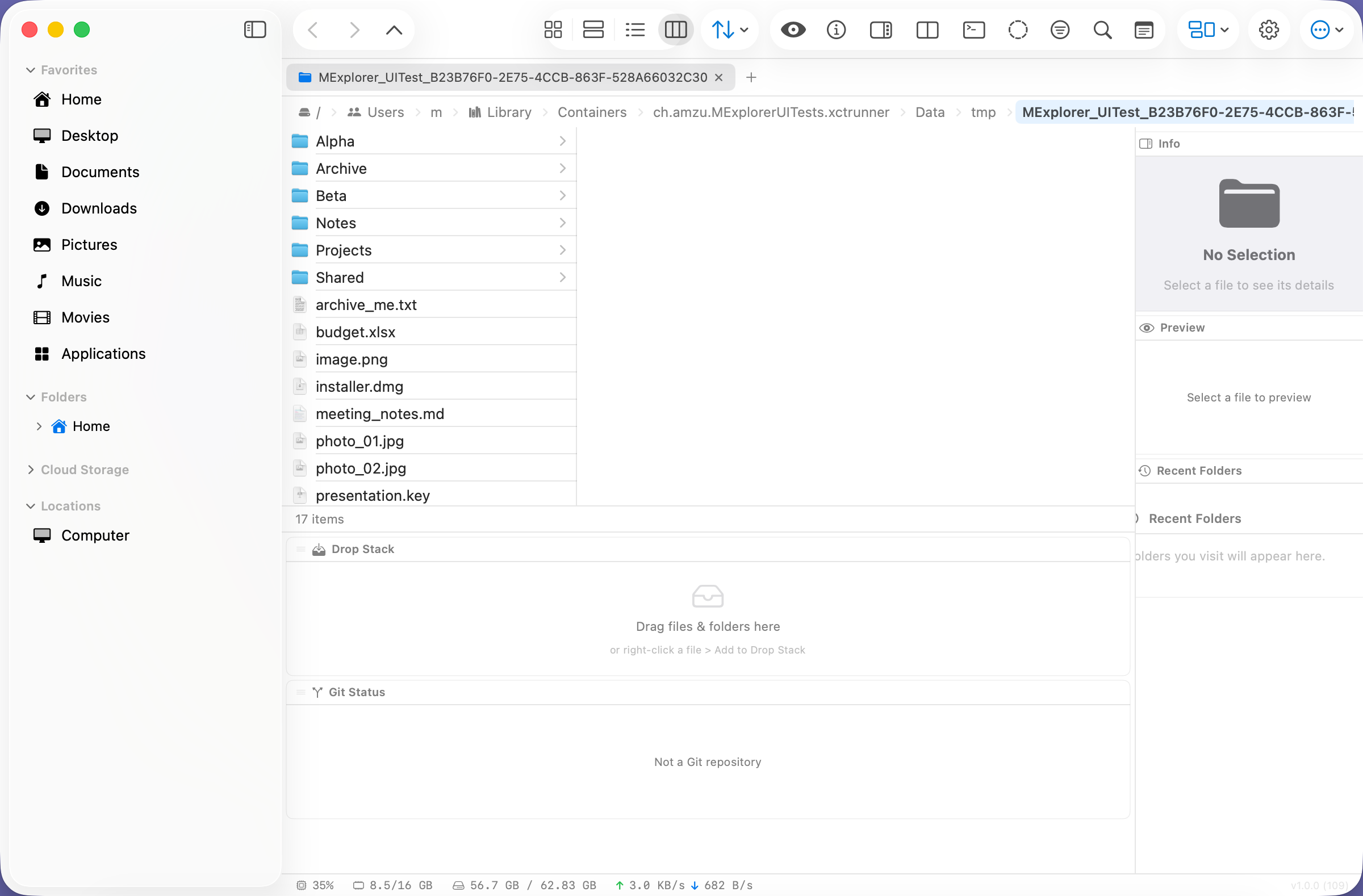
Miller Column View

Finder-style cascade of columns. Select a folder and a new column opens to the right, ready for a deeper dive.

⌨️

Commander F-keys

Optional F4 rename / F7 new folder / F8 trash bindings for muscle memory carried over from Total Commander and Norton.

💾

Per-Folder View Memory

View mode, icon size and sort are remembered per folder — the way Finder, Dolphin, Nemo and Windows Explorer all do.

⤴️

".." Parent-Folder Row

Total-Commander-style clickable ".." row at the top of the file list. Click to go up; drop files on it to move them up.

🧲

Drag-to-Move

Dragging a file into another folder moves it by default, not copies. Hold to copy — the same convention Finder uses within a volume.

#️⃣

Checksums

Context menu → Checksum computes MD5 or SHA-256 directly to the clipboard, or verifies against a .md5/.sha256 sidecar.

🗜️

Compress As…

Right-click → Compress As… with a choice of ZIP, tar.gz, tar.xz or 7z (via p7zip) at compression levels 0–9.

🌍

11 Languages

English, Deutsch, Español, Français, Italiano, 日本語, 한국어, Português (Brasil), Русский ❤️ 🇺🇦, Українська, 简体中文 — follows your system language automatically.

🧪

MExplorer Desktop (experimental)

Path-Finder-style desktop replacement. Tells Finder to stop drawing icons on the desktop (writes com.apple.finder CreateDesktop false and killall Finder), then paints a transparent canvas at the desktop-icon window level on every screen and populates it from ~/Desktop. You get the full MExplorer context menu, tags, ratings and modules right on the desktop. Off by default; the toggle lives in Settings → Experimental and the side effects are reversible — turning it off restores Finder’s desktop on the next quit.

One click — every file manager you’ve ever used.

Pick a preset in Settings → Profile Presets and MExplorer flips its feature bundle, default view mode, appearance, accent colour and split-view layout to match the picked file manager. Each preset is reversible — choose MExplorer Default any time to clear every override.

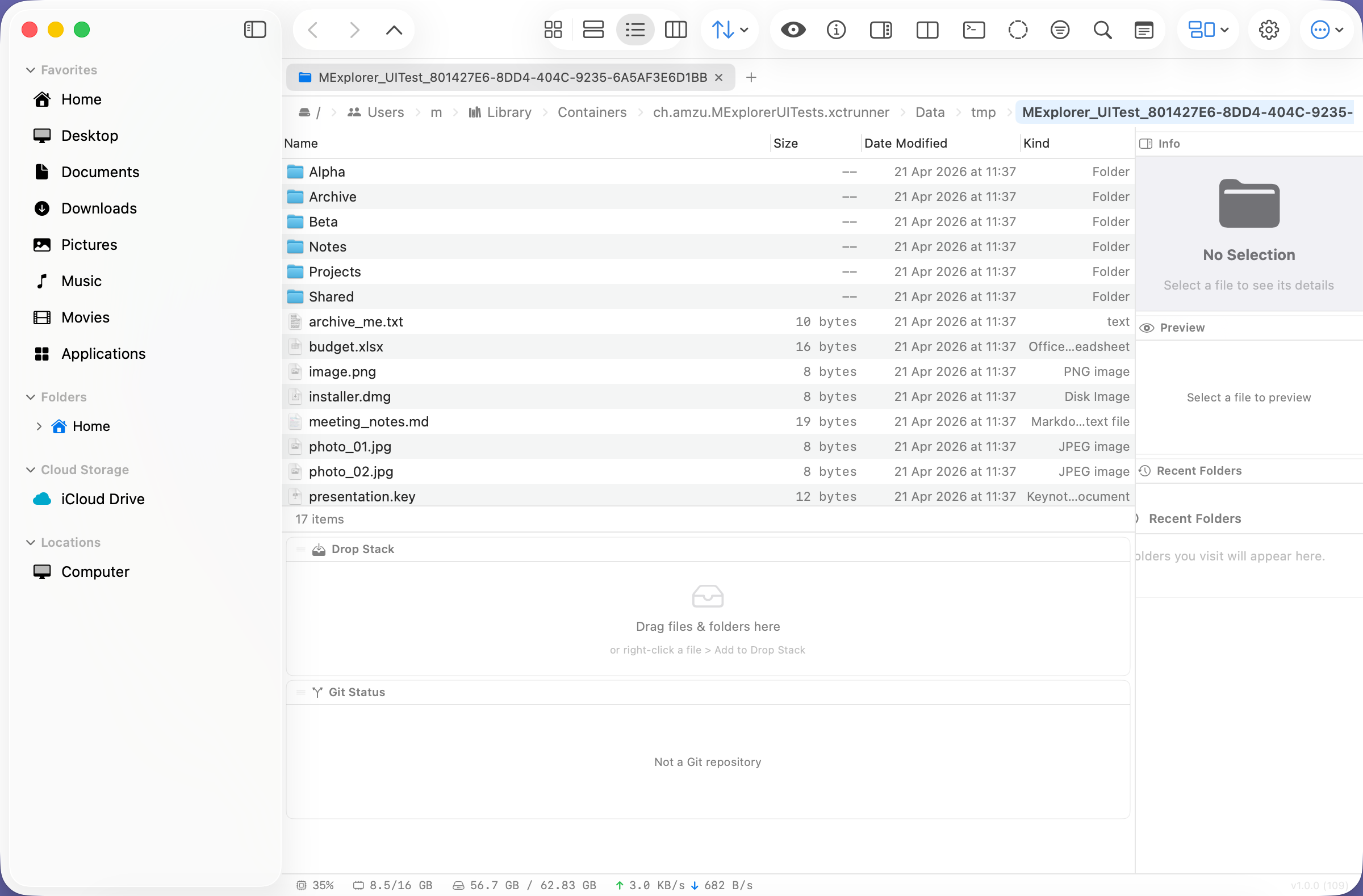
macOS Finder

Miller columns, Apple blue, system appearance. Compress + Smart Folders + Connect to Server on.

MExplorer with macOS Finder preset applied

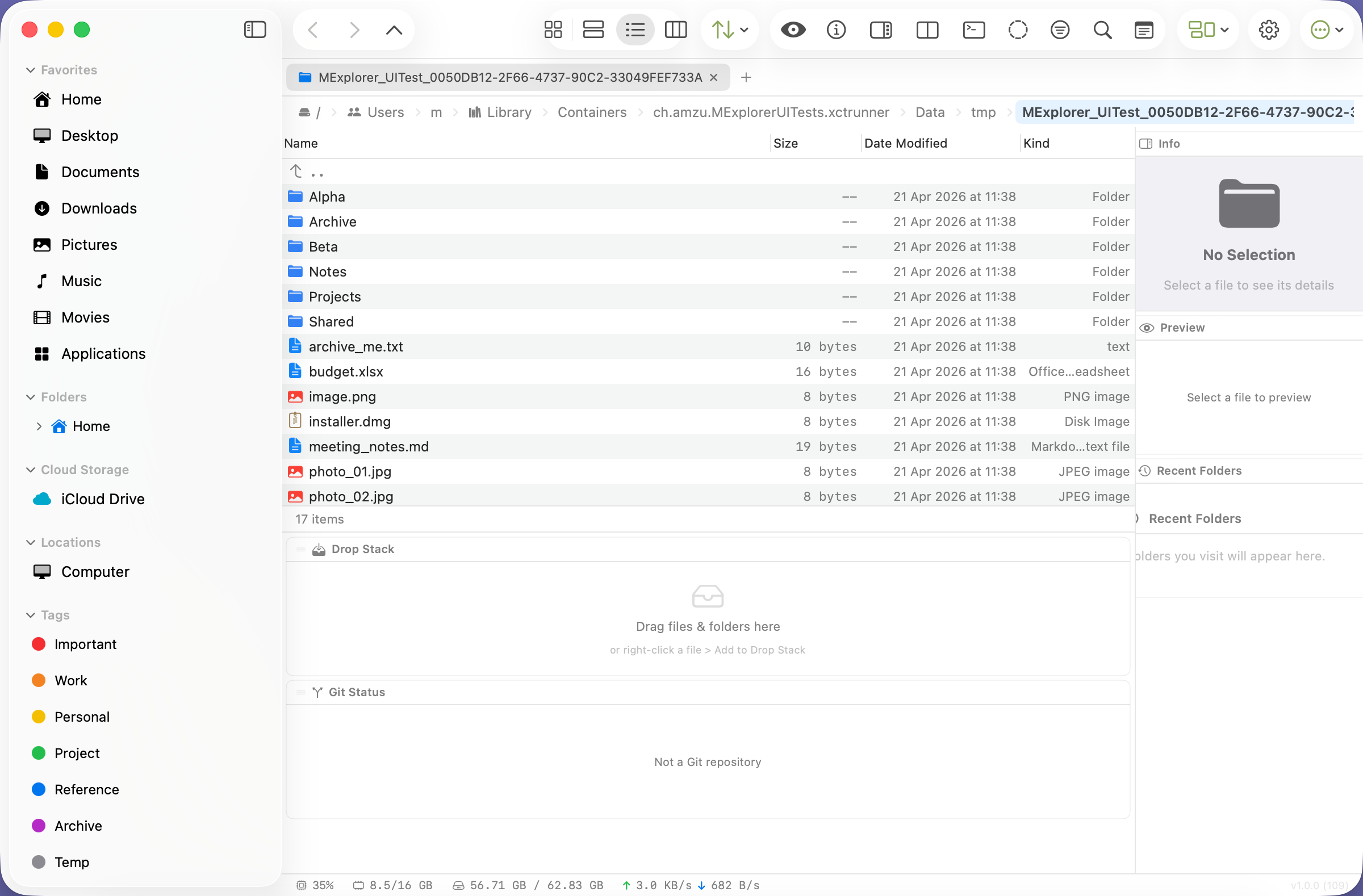
Windows Explorer

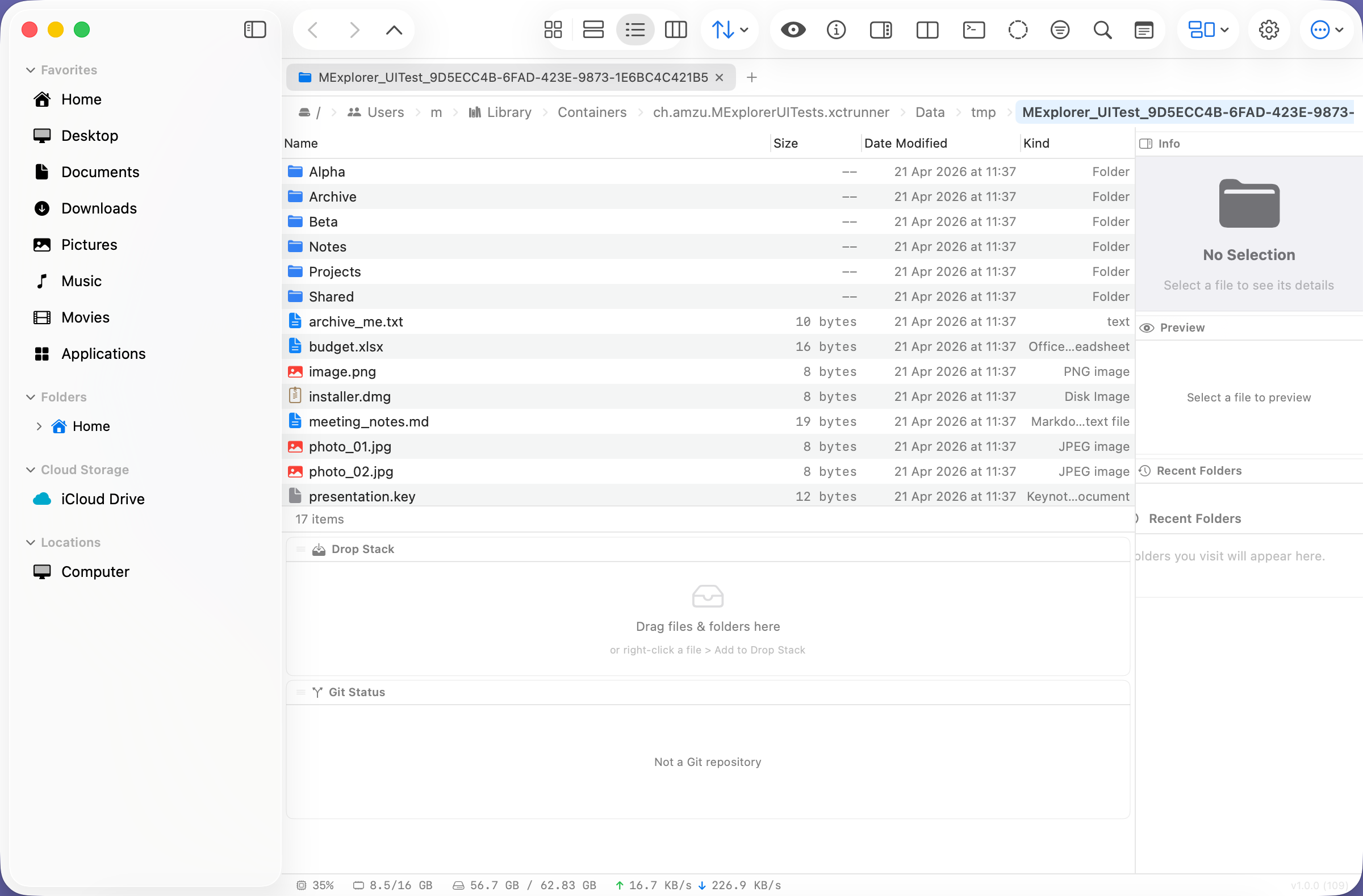
Details view, light theme, Fluent blue. Archive creator, undo, Open Terminal Here, transfer manager, saved searches.

MExplorer with Windows Explorer preset applied

KDE Dolphin

Single-pane default (F3 toggles split), dark Breeze, checksum + chmod + xattrs, transfer manager, saved searches, colour labels.

MExplorer with KDE Dolphin preset applied

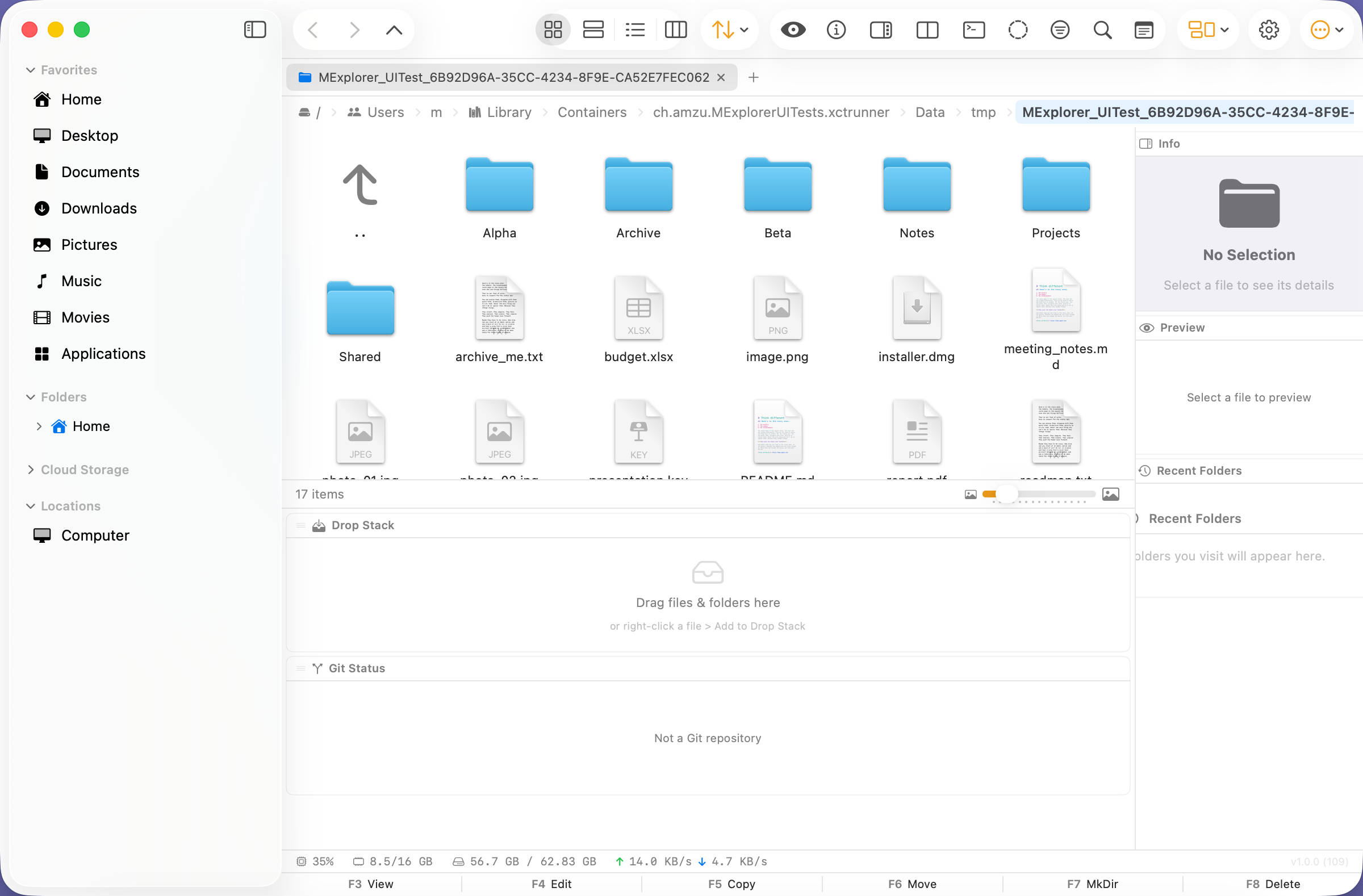
GNOME Nautilus

Grid icons, minimal chrome, Adwaita blue. Archive creator, undo, Connect to Server. No Commander keys, no dual pane.

MExplorer with GNOME Nautilus preset applied

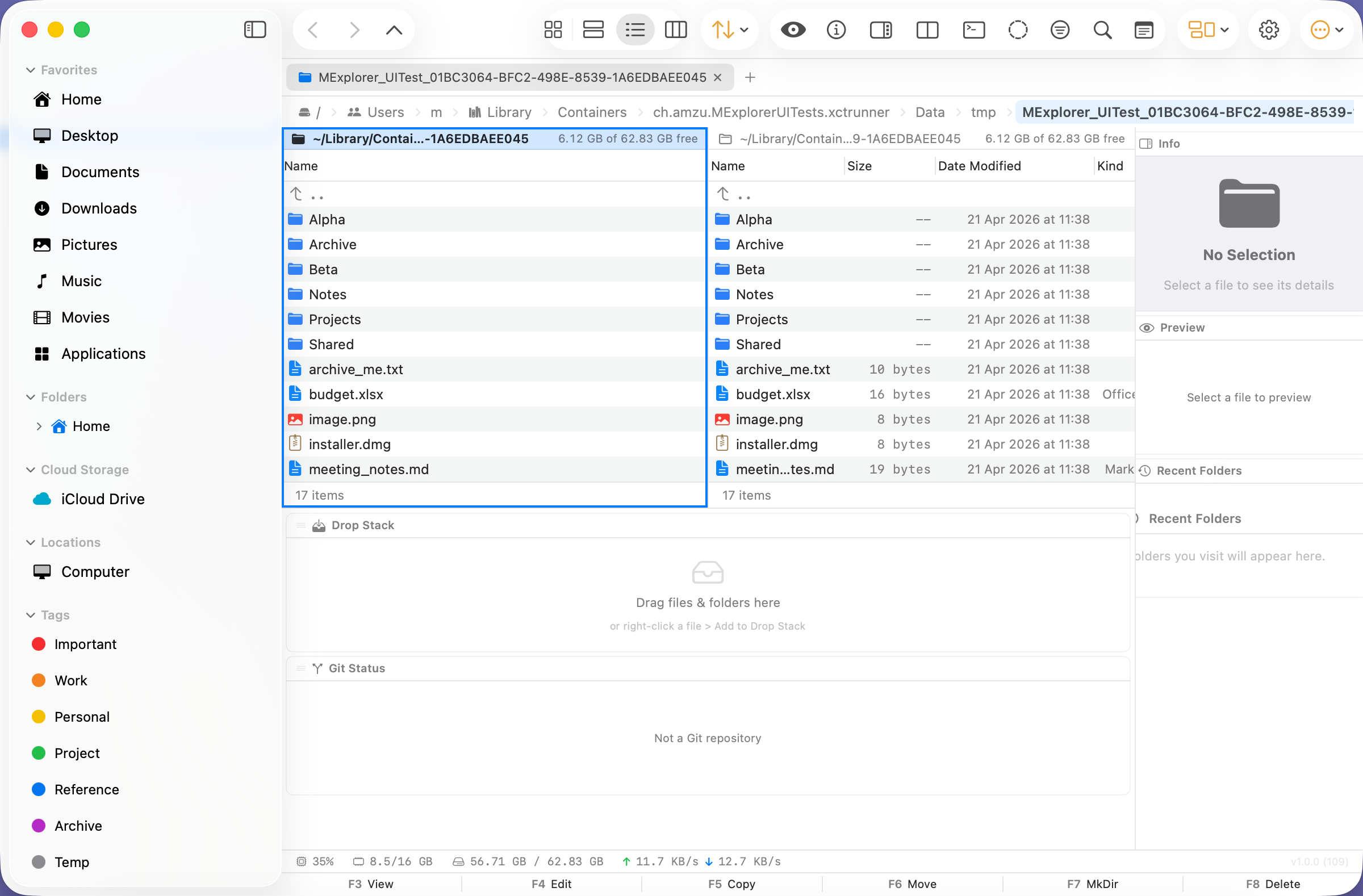
Total Commander

Dual-pane, dark, orange accent. Commander F3/F4/F5/F6/F7/F8, transfer queue, checksum, chmod, FTP site manager, hidden files on.

MExplorer with Total Commander preset applied

Directory Opus

Max loadout: every power flag on, dark, gold accent. The choose-this-when-you-want-everything profile.

MExplorer with Directory Opus preset applied

Cinnamon Nemo

Extra Pane (F3) on, Mint green, emblems + colour labels + per-folder settings. Everything Nautilus removed, put back.

MExplorer with Cinnamon Nemo preset applied

XFCE Thunar

Fast, lean, single pane. Bulk Rename and Custom Actions as the extensibility surface. No transfer queue, no undo.

MExplorer with XFCE Thunar preset applied

FreeCommander

Explorer + dual-pane + power tools. Light theme, Commander F-keys, checksum, FTP. Lighter than TC, more than Explorer.

MExplorer with FreeCommander preset applied

ChromeOS Files

Cloud-first, minimal chrome, Google blue, light. Short right-click menu, SMB mounting. Local storage is the guest.

MExplorer with ChromeOS Files preset applied

MExplorer Default

The shipping configuration. Pick this to clear any override applied by another preset.

MExplorer Default preset

Server Manager

FileZilla / WinSCP, inside MExplorer.

A saved-sites list in Settings → Server Manager with support for SFTP, SSH, FTP, FTPS, WebDAV, SMB and AFP. Each entry carries host, port, username and a remote path; the password is stored in the macOS Keychain (kSecAttrAccessibleWhenUnlockedThisDeviceOnly) and never touches UserDefaults or plist files.

🔒

Keychain-backed

Passwords are encrypted at rest by macOS, bound to the unlocked device, keyed by the site’s UUID. Delete the site → Keychain entry wiped.

🔌

Seven protocols

SFTP, SSH, FTP, FTPS, WebDAV, SMB/CIFS, AFP — with the right default port preselected for each.

📍

Connect directly

Click Connect and MExplorer hands the URL to macOS NetFS, which mounts the share as a first-class volume in the sidebar.

⌨️

URL scheme in path bar

Also: type sftp://user@host/path or smb://server/share directly into the breadcrumb and MExplorer hands it to the OS for a one-shot connect. Go → Connect to Server… opens a dedicated prompt and remembers the last URL (password-stripped, never stored in plaintext).

🎛️

Auto-enabled

Total Commander, Dolphin, Directory Opus and FreeCommander presets turn the server manager on. MExplorer Default leaves it off to keep the UI light.

📖

Unit-tested

Seven dedicated tests cover CRUD, Keychain round-trip under Unicode passwords, delete-wipes-password, and URL building for every protocol.

Your window, your rules.

MExplorer ships with ready-made layout presets — Default, Minimal, Developer, Preview — and lets you build your own. Modules (preview, info, quick notes, terminal, drop stack, tag cloud) can be docked left, right, bottom or hidden. The layout is remembered per preset.

Command Palette

Hit ⌘K to jump to any action, folder or favorite from a fuzzy search. Keyboard-first, mouse optional.

Tool Windows Submenu

A Rider-style View → Tool Windows submenu with a checkbox for every module — Terminal, Git Status, Hex Editor, Drop Stack, Metadata Inspector, Transfers, Recent Folders, File Preview and more. Flip any on or off without opening Settings; Connect to Server… and Server Manager… live at the bottom for one-stop SFTP/WinSCP access.

MLaunchy Deep-Linking

MExplorer registers the mexplorer:// URL scheme and publishes a browsable provider manifest at ~/Library/Application Support/MLaunchy/providers/ch.amzu.MExplorer.json. Typing MExplorer + Tab into MLaunchy drills into your folder groups, then a folder, then Enter opens it back in MExplorer via mexplorer://open?path=…. Manifest updates as you add favourites, idempotent writes keep the disk quiet.

Folder Groups Dashboard

Organise bookmarks by colour-coded groups on the Home Dashboard. Drag folders onto a card to add them; group cards flow into a responsive 2–4 column grid instead of one-per-row, and each group has its own SF Symbol + TagColor picker. Groups round-trip to MLaunchy automatically.

Configurable Dock Menu

Right-click MExplorer's Dock icon for one-tap access to Recent Folders, Favorites, Tags and Ratings. Settings → Dock Menu lets you toggle each section, set per-section item counts (1–20), and switch between inline rows and collapsible submenus. Every entry foregrounds the app and reuses the existing in-app drill-down code paths.

CLI Wrapper

A mexplorer shell wrapper ships in the app bundle and is symlinked to ~/bin/mexplorer. mexplorer /Users/m opens the path; mexplorer ~/a ~/b ~/c opens three tabs. If MExplorer is already running it routes via mexplorer://open?path=…&newTab=1 instead of spawning a second process; on cold start it launches with the paths as positional args.

Single-Instance Mode

Settings → General → Allow only one instance (on by default) makes a second invocation forward its CLI args to the running window via the URL scheme and exit before any UI initialises. Turn off if you actively want parallel windows for split work.

Built-in Git Explorer

View → Git Explorer… (⌥⌘G) opens a separate window with git log --graph output for the active pane's folder — commits as a scrollable table with monospace ASCII graph column, short hash, author, relative date and subject. Right-click rows to copy the SHA, copy the subject, or jump to Terminal with git show staged.

Custom Actions

Pipe selected files to any shell command with %f, %d, %n, %e, %b placeholders. Filter actions by file extension or directory.

Drop Stack

Stage files from many folders, then drop them all at once — the fastest way to move scattered files.

Quick Look

Tap Space on any file for the system Quick Look preview — same API Finder uses.

Terminal Module

Embedded terminal docked beside the file list. Follows your navigation so pwd is always the folder you’re viewing.

Quick Notes

A scratchpad module that persists per folder. Leave yourself reminders wherever you work.

File Templates

Create new Python, Swift, JSON or custom files with boilerplate in one step.

Icon Customization

Pick any SF Symbol and color for each file type. Reset to defaults in one click.

System Footer

Live disk space, memory pressure and item counts for the current folder at a glance.

Group & Sort

Sort by name, size, date, kind. Group by kind, date, size or first letter — with folders first, always.

Tabs & Breadcrumbs

Pin tabs, color them, duplicate, close-others. Clickable breadcrumb path bar for instant jumps up the tree.

Favorites Sidebar

Drag folders into the sidebar, reorder, nest. Starred files section surfaces everything you’ve rated.

Five View Modes

Icons (⌘1), Compact (⌘2), Details (⌘3), Miller Columns (⌘4) and the Thumbnail Grid (⌘5). Details renders as a native AppKit outline with inline folder tree expansion; Thumbnails has a 64–512 px size slider with debounced QuickLook rendering.

Info & Preview Panels

⌘I toggles a detail panel with dates, dimensions, permissions and tags. A side preview pane shows the selected file’s contents live.

Git Status Module

A sidebar module shows the current folder’s git branch and a per-file M/A/D breakdown. One-click refresh.

Hex Editor Module

A docked hex view of the selected file — 16 bytes per line with ASCII gutter — in addition to the full-screen F3 hex viewer.

Metadata Inspector

Inspect extended attributes, UTI, code-signing status and any custom Spotlight metadata the file carries.

Finder Tag Sync

Color tags are read from and written to Finder’s native label system, so MExplorer and Finder stay in sync.

Setup Wizard & Help

First launch runs a five-step onboarding. A searchable in-app help browser covers navigation, views, file ops, modules and shortcuts.

Install

Up and running in under a minute.

  1. Download MExplorer.zip and unzip it.
  2. Drag MExplorer.app to /Applications.
  3. On first launch, right-click the app and choose Open to bypass the “unidentified developer” notice.
  4. Optional: grant Full Disk Access in System Settings → Privacy & Security to see protected folders.
  5. Follow the five-step setup wizard; tweak layouts and modules from Settings any time.

Keyboard shortcuts

Navigation

⌘T new tab · ⌘W close
⌘[ back · ⌘] forward
⌘↑ up · ⌘⇧G go to path
⌘R refresh · ⌘⇧. hidden files

Views & panels

⌘1/⌘2/⌘3 icons / compact / details
⌘4 columns · ⌘5 thumbnails
⌘| toggle split view
⌘I info panel · ⌘⇧P preview
⌘⇧T terminal · Space Quick Look

File ops

⌘⇧N new folder · Return rename
⌘↩ bulk rename · ⌘⌫ trash
F5 copy to other pane · F6 move
F3 built-in viewer · Ctrl+↩ folder size

Search

⌘F find filename
⌘⇧F find in files (regex)
⌘⇧D duplicate finder
Ctrl+I type-ahead filter

Command palette

⌘K open palette
/ navigate · run
Fuzzy-match across actions, folders, favorites.

Viewer & help

/ prev/next image
+/-/0/1 zoom · Space slideshow
⌘? help · ⌘⇧K shortcuts

Requires macOS 13 Ventura or later. Tested on Apple silicon and Intel. Every shortcut is remappable in Settings → Keyboard.

Built for macOS. No compromises.

Privacy First

No usage analytics, sessions or performance traces. Everything stays on your Mac unless you explicitly share it.

Crash Reports, Opt-Out

A crash-only Sentry integration ships with the app. Toggle it off in Settings → Error Reporting; it shuts down immediately.

Minimal Permissions

No Accessibility, no Screen Recording. Full Disk Access is optional and strictly for exposing protected folders.

Update Checks

MExplorer checks for a new version once a day, compares against the public appcast, and never downloads without your action.

Built-in Bug Report

Settings → Error Reporting has a one-click reporter that pre-fills version, build, macOS and hardware information.

Made with SwiftUI

Native, small binary, instant launch, familiar Mac UX — no Electron, no web wrapper.

No warranty — use at your own risk

MExplorer is provided free of charge, as is, without warranty of any kind, express or implied. amzu solutions GmbH is not liable for any data loss, misplaced files or other damages resulting from use of the software.

Always keep backups of important data. Verify destructive actions (moves, deletes, batch renames) before you commit them.

Enjoying MExplorer?

If this app saves you time, consider supporting its development.

☕ Buy me a coffee

Found a bug? Email .